Certificate in office Automation
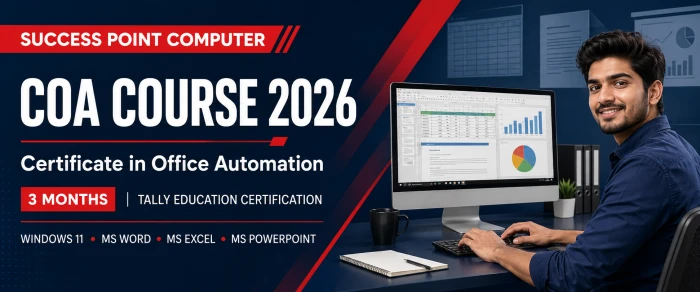
Certificate in office Automation
Course Description
COA Course 2026 – Complete Syllabus & Practical Training
Certificate in Office Automation में Computer Fundamentals, Windows 11, MS Word, MS Excel और MS PowerPoint के साथ SPC की job-oriented practical training सीखें।
Certification और Additional Training की स्पष्ट जानकारी
Certification: Tally Education. Part A, Tally Education के five-chapter Office Automation course structure पर आधारित है। Part B, SUCCESS POINT COMPUTER द्वारा दी जाने वाली supplementary practical एवं job-oriented training है; इसे Tally Education के official assessment का हिस्सा तभी माना जाएगा जब Tally Education द्वारा औपचारिक रूप से approved हो।
The supplementary modules should not be presented as part of Tally Education’s official assessment unless formally approved by Tally Education.
Course Introduction
COA Course क्या है?
COA का Full Form Certificate in Office Automation है। यह course learners को computer और modern office applications का practical उपयोग सिखाता है। इसमें Windows 11 पर व्यवस्थित file management, Microsoft Word में professional documentation, Microsoft Excel में calculation और data analysis तथा Microsoft PowerPoint में financial और office presentations तैयार करना शामिल है।
यह course students तथा working professionals के लिए उपयोगी है जो office, accounts, documentation, data entry या administrative work में computer skills मजबूत करना चाहते हैं। SUCCESS POINT COMPUTER का 3-month training plan concept explanation, demonstration, individual lab practice, assignments और integrated project को जोड़ता है।
| Course Name | Certificate in Office Automation (COA) |
|---|---|
| Certification | Tally Education |
| Training Institute | SUCCESS POINT COMPUTER |
| Course Duration | 3 Months — Institute Training Plan |
| Training Mode | Classroom Theory, Live Demonstration and Computer Lab Practice |
| Suitable For | Students and Working Professionals |
| Course Focus | Computer Fundamentals, Windows 11, MS Word, MS Excel and MS PowerPoint |
Purpose & Outcomes
COA Course के Objectives
Course Benefits
COA Course क्यों करें?
आज अधिकांश office roles में documents, spreadsheets, presentations, files, e-mail और digital records के साथ काम करना पड़ता है। COA learner को इन core workplace tools की structured practice देता है और केवल software commands के बजाय usable office output तैयार करने पर ध्यान केंद्रित करता है।
Part A • Official Structure
Tally Education Office Automation – 5 Chapters
प्रत्येक chapter खोलकर topics, shortcut keys, practical exercises और learning outcomes देखें।
1.1 Introduction to Computer
- Meaning and definition of a computer
- Characteristics of computers: speed, accuracy, storage, diligence and automation
- Basic working cycle: Input, Processing, Output and Storage
- Types of computers: Desktop, Laptop, Tablet and Smartphone
- Common uses of computers in offices, education, banking, accounting and business
- Advantages and limitations of computers
1.2 Components of Computer – Hardware and Software
Computer Hardware
- Meaning of hardware
- System unit and computer cabinet
- Motherboard and Processor (CPU)
- RAM, ROM and Cache Memory
- HDD, SSD, Pen Drive and Memory Card
- Keyboard, mouse, scanner and microphone
- Monitor, printer, speakers and projector
- USB, HDMI, VGA, audio and network ports
- Input, output, processing, storage and communication devices
Computer Software
- Meaning and importance of software
- System software and operating systems
- Application software
- Utility software
- Licensed, freeware and open-source software
- Installing and uninstalling basic applications
- Difference between hardware and software
1.3 Introduction to Windows 11
- Meaning and functions of an operating system
- Main features of Windows 11
- Starting the computer and signing in
- Start Menu, Search, Taskbar and Notification Area
- Opening, closing and switching between applications
- Minimise, maximise, restore and resize operations
- Working with multiple windows
- Lock, Sign Out, Sleep, Restart and Shut Down
- Basic Windows keyboard shortcuts
1.4 Desktop and Its Properties
- Desktop, icons and shortcuts
- This PC, Recycle Bin and Network icons
- Creating, renaming and deleting desktop shortcuts
- Arranging and sorting icons
- Changing desktop background and themes
- Display resolution, scaling and orientation
- Personalising colours, Lock Screen and Taskbar
- Date, time, time-zone, sound and notification settings
1.5 Mouse Properties and Region Options
- Point, click, double-click and right-click
- Drag-and-drop and scrolling
- Selecting single and multiple items
- Changing the primary mouse button
- Adjusting pointer and double-click speed
- Changing pointer style and size
- Selecting country and regional format
- Configuring date, time, number and currency formats
- Adding Hindi and English keyboard layouts
- Switching between keyboard languages
Important Shortcut Keys
Windows: Open Start MenuWindows + D: Show or hide DesktopWindows + E: Open File ExplorerWindows + I: Open SettingsWindows + L: Lock the computerAlt + Tab: Switch applicationsAlt + F4: Close active windowCtrl + Shift + Esc: Open Task ManagerWindows + Shift + S: ScreenshotWindows + Spacebar: Change languageChapter 1 Practical Exercises
- Identify the main hardware components and connected devices.
- Start, restart and properly shut down Windows 11.
- Open and switch between multiple applications.
- Create and manage desktop shortcuts.
- Change desktop background, theme and display settings.
- Configure mouse-pointer and regional settings.
- Add Hindi and English keyboard languages.
- Practise important Windows shortcut keys.
Learning Outcome: Learners will be able to identify computer components, distinguish between hardware and software, operate Windows 11 and configure basic desktop, mouse and regional settings.
2.1 Introduction to Windows Applications
- Understanding drives, files, folders and paths
- Introduction to File Explorer
- Navigation Pane, Address Bar, Search Box and Toolbar
- Different file and folder viewing options
- Understanding common file extensions
2.2 Files and Folder Management
- Creating files and folders
- Opening and closing files and folders
- Selecting single, multiple and continuous items
- Renaming files and folders
- Copy, Cut, Paste and Move operations
- Drag-and-drop file management
- Deleting and restoring items
- Sorting and grouping files
- Searching for files and folders
- Viewing file and folder properties
- Creating desktop shortcuts
- Compressing and extracting ZIP folders
- Using USB drives safely
2.3 Wildcards Concept in Windows 11
- Meaning and purpose of wildcards
- Using the asterisk (
*) wildcard - Using the question-mark (
?) wildcard - Searching by name and file extension
- Locating groups of related files
- Practical wildcard-search examples
2.4 Recycle Bin
- Purpose of the Recycle Bin
- Viewing deleted files
- Restoring selected items
- Permanently deleting items
- Emptying the Recycle Bin
- Difference between Delete and
Shift + Delete
2.5 Notepad
- Opening and understanding Notepad
- Creating, editing and saving text files
- Open, Save and Save As commands
- Cut, Copy, Paste, Undo and Select All
- Find, Find Next and Replace
- Word Wrap, Font, Zoom and Status Bar
- Inserting date and time
- Page Setup and printing a text file
Important Shortcut Keys
Ctrl + N: Create a new item or fileCtrl + C: Copy selected itemCtrl + X: Cut selected itemCtrl + V: Paste selected itemCtrl + Z: Undo previous actionCtrl + A: Select all itemsF2: Rename selected itemDelete: Move to Recycle BinShift + Delete: Permanently deleteCtrl + F: Find text or searchChapter 2 Practical Exercises
- Create an organised folder structure for an office.
- Copy, move, rename, sort and search for files.
- Search for files using
*and?wildcards. - Delete and restore files through the Recycle Bin.
- Create and format a short notice in Notepad.
- Compress a folder and extract it to another location.
- Copy data to a USB drive and eject it safely.
Learning Outcome: Learners will be able to manage office files systematically, use Windows search and wildcards, recover deleted items and prepare basic text files in Notepad.
3.1 Introduction to Microsoft Word
- Purpose and common uses of a word processor
- Starting Microsoft Word
- Understanding the Title Bar, Ribbon, Tabs, Groups and Status Bar
- Creating a new blank document
- Creating a document using a template
- Open, Save, Save As and Close commands
- Selecting, inserting and deleting text
- Cut, Copy, Paste, Undo and Redo
- Zoom and document-view options
3.2 Creating and Setting Up New Documents
- Page size, margins and orientation
- Page colour, border and watermark
- Line and paragraph spacing
- Page breaks and section breaks
- Columns and page setup
- Headers, footers and page numbers
- Date, time and document properties
- Print Preview and printing options
- Saving a document as PDF
3.3 Text and Paragraph Formatting
- Font type, size, colour and text effects
- Bold, Italic, Underline, Strikethrough, Subscript and Superscript
- Change Case and Clear Formatting
- Text alignment: Left, Centre, Right and Justify
- Indentation and tab settings
- Line spacing and paragraph spacing
- Bullets, numbering and multilevel lists
- Borders and shading
- Format Painter
- Styles and themes
3.4 Working with the Insert Tab
- Inserting and formatting tables
- Adding and deleting rows and columns
- Merging and splitting cells
- Sorting data and using simple table formulas
- Pictures, icons, shapes and SmartArt
- Text boxes and WordArt
- Symbols and special characters
- Hyperlinks and bookmarks
- Header, footer and page number
- Charts, screenshots and online media where supported
3.5 Useful Functions and Tools in Word
- Find, Replace and Go To
- Spelling and Grammar checking
- AutoCorrect and Thesaurus
- Word Count and Translate tools
- Comments and basic document review
- Protecting a document from unwanted editing
- Mail Merge: letters, labels and envelopes
- Keyboard shortcuts for faster documentation
3.6 Professional and Accounting Documentation
- Formal and business letters
- Office notices, circulars and memorandums
- Resume or Curriculum Vitae
- Quotation and purchase-order format
- Simple invoice and receipt format
- Payment voucher and expense statement format
- Meeting agenda and minutes
- Company letterhead and office forms
Chapter 3 Practical Exercises
- Prepare and format an official business letter.
- Create a professional resume.
- Design an office notice using borders and tables.
- Prepare a quotation, receipt or payment-voucher format.
- Create a document with header, footer and page numbers.
- Insert and format a table, image, shape and SmartArt.
- Create multiple letters using Mail Merge.
- Print a document and save it as a PDF.
Learning Outcome: Learners will be able to create, format, review, print and export professional documents required in accounting, administration and general office work.
4.1 Introduction and Worksheet Overview
- Purpose and uses of spreadsheets
- Starting Microsoft Excel
- Workbook, worksheet, row, column, cell and range
- Name Box, Formula Bar, Ribbon and Status Bar
- Creating, opening, saving and closing workbooks
- Adding, renaming, moving, copying and deleting worksheets
- Entering and editing text, numbers, dates and time
- AutoFill, Flash Fill and custom lists
4.2 Inserting and Formatting Data
- Selecting cells, ranges, rows and columns
- Insert, delete, hide and unhide operations
- Row height and column width
- Font, alignment, border and fill formatting
- Wrap Text, Merge and Centre
- Format Painter and Cell Styles
- General, Number, Currency, Accounting, Date, Time and Percentage formats
- Find, Replace, Go To and Paste Special
4.3 Cell Referencing
- Relative cell reference
- Absolute cell reference
- Mixed cell reference
- Referencing cells across worksheets
- Practical use of
$in formulas
4.4 Number and Conditional Formatting
- Applying appropriate number formats
- Custom number formats
- Highlight Cells Rules
- Top/Bottom Rules
- Data Bars, Colour Scales and Icon Sets
- Creating, editing and clearing conditional-formatting rules
4.5 Working with Formulas
- Formula structure and mathematical operators
- Operator precedence
- Creating, editing and copying formulas
- AutoSum and basic calculations
- Handling common formula errors
- Auditing and checking formulas
4.6 Mathematical and Statistical Functions
SUMAVERAGEMINMAXCOUNTCOUNTACOUNTBLANKROUNDROUNDUPROUNDDOWNSUBTOTALSUMIFSUMIFSCOUNTIFCOUNTIFS4.7 Logical Functions
IFand nestedIFIFSwhere supportedAND,ORandNOTIFERROR- Combining logical functions for office calculations
4.8 Basics of Financial Functions
- Meaning and use of financial functions
PMTfor loan instalment calculations- Basic use of
PVandFV - Calculating interest and instalment schedules
- Practical EMI and investment examples
4.9 Lookup Functions
- Exact and approximate lookup concepts
VLOOKUPHLOOKUPXLOOKUPwhere supportedINDEXandMATCHintroduction- Handling lookup errors
4.10 Goal Seek
- Meaning and purpose of What-If Analysis
- Using Goal Seek
- Target-sales and profit examples
- Loan and instalment examples
4.11 Charts and Pivot Tables
- Selecting suitable data for charts
- Column, Bar, Line and Pie charts
- Chart title, legend, axis and data labels
- Formatting and updating charts
- Introduction to Pivot Tables
- Creating and arranging a Pivot Table
- Row, Column, Value and Filter areas
- Sorting, filtering and refreshing Pivot Tables
- Creating a basic Pivot Chart
4.12 Data Management Tools
- Sorting data by one or more columns
- Filter and Advanced Filter introduction
- Data Validation and drop-down lists
- Remove Duplicates
- Text to Columns
- Freeze Panes
- Protecting sheets and workbooks
- Importing basic text or CSV data
4.13 Printing and Page Setup
- Setting Print Area
- Page orientation, margins and scaling
- Header, footer and page numbering
- Repeating headings on printed pages
- Page Break Preview
- Printing selected data
- Exporting worksheets as PDF
4.14 Office and Accounting Worksheets
- Employee attendance sheet
- Salary and wages sheet
- Student marksheet and result sheet
- Fee collection and due-fee register
- Daily cash book
- Sales and purchase register
- Stock or inventory statement
- Expense and income statement
- Invoice and quotation worksheet
- Loan EMI calculation sheet
Chapter 4 Practical Exercises
- Create a properly formatted employee-data worksheet.
- Prepare an attendance and salary sheet using formulas.
- Create a marksheet using logical and statistical functions.
- Use lookup functions to retrieve records.
- Apply Data Validation and Conditional Formatting.
- Prepare a sales summary with a chart.
- Analyse data using a Pivot Table and Pivot Chart.
- Use Goal Seek for a target-based calculation.
- Set the Print Area and export a report as PDF.
Learning Outcome: Learners will be able to enter and format data, use formulas and functions, manage business records, perform basic financial calculations and prepare charts, Pivot Tables and print-ready reports.
5.1 Getting Started with PowerPoint
- Purpose and uses of presentation software
- Starting Microsoft PowerPoint
- Understanding the PowerPoint interface
- Presentation, slide, placeholder and layout
- Creating a blank presentation
- Creating a presentation using a template
- Opening, saving and closing presentations
- Normal, Outline, Slide Sorter, Notes and Reading views
5.2 Creating and Organising Slides
- Adding, duplicating, moving and deleting slides
- Applying and changing slide layouts
- Entering and formatting text
- Bullets, numbering, alignment and spacing
- Applying themes and variants
- Changing slide size and background
- Reusing slides
- Organising slides into sections
5.3 Inserting and Formatting Content
- Pictures, icons and screenshots
- Shapes, text boxes and WordArt
- SmartArt graphics
- Tables and charts
- Adding data from Excel
- Hyperlinks and action buttons
- Audio and video
- Aligning, grouping and arranging objects
5.4 Transitions and Animations
- Applying slide transitions
- Transition duration and sound
- Entrance, emphasis, exit and motion-path animations
- Animation Pane and effect options
- Reordering and timing animations
- Using animations professionally and consistently
5.5 Creation and Finalisation of Presentation
- Creating presentations using templates
- Reviewing content and correcting spelling
- Maintaining consistent fonts, colours and alignment
- Adding headers, footers, date and slide numbers
- Speaker Notes and Presenter View
- Rehearse Timings and Set Up Slide Show
- Starting a slide show from the beginning or current slide
- Custom Slide Show
- Printing slides, Notes Pages and handouts
- Saving as PDF and video where supported
- Packaging and sharing a presentation
5.6 Financial and Office Presentations
- Monthly sales-performance presentation
- Income and expense summary
- Budget presentation
- Company profile
- Product or service presentation
- Project-progress report
- Using Excel charts in a financial presentation
Chapter 5 Practical Exercises
- Create a five-slide company-profile presentation.
- Prepare a sales or expense presentation with charts.
- Apply a professional theme and consistent formatting.
- Insert and format pictures, shapes, SmartArt and tables.
- Add suitable transitions and animations.
- Add speaker notes and deliver a slide show.
- Print handouts and save the presentation as PDF.
Learning Outcome: Learners will be able to create, organise, enhance, present, print and share professional financial and office presentations.
Part B • Institute Value-Added Training
SPC Practical & Job-Oriented Modules
ये seven supplementary modules SUCCESS POINT COMPUTER द्वारा practical skill development के लिए दिए जाते हैं और Tally Education के official five-chapter assessment structure से अलग हैं।
- Correct sitting posture and keyboard-hand position
- Home-row, upper-row and lower-row key practice
- Use of Shift, Caps Lock, Backspace, Tab and Enter
- English typing with accuracy and speed practice
- Hindi Unicode typing and keyboard-layout introduction
- Typing office letters, notices, lists and data tables
- Weekly speed and accuracy tests
- Internet, website, browser, search engine and URL
- Safe and effective web searching
- Downloading and uploading files
- Creating and managing an e-mail account
- Compose, Reply, Reply All and Forward
- CC, BCC, attachments and e-mail signatures
- Managing Inbox, Sent, Draft, Spam and Trash
- Google Drive or OneDrive basics
- Uploading, organising and sharing cloud files
- Basic online collaboration and permissions
- Connecting and selecting a printer
- Page selection, copies, orientation and paper size
- Single-sided and duplex printing
- Colour and black-and-white printing
- Scanning documents and photographs
- Selecting scan resolution and file format
- Creating a PDF from Word, Excel and PowerPoint
- Combining, splitting, compressing and organising PDF files
- Safe handling of confidential office documents
- Filling online forms accurately
- Uploading photographs, signatures and documents
- Understanding file-size and file-format requirements
- Converting images and documents into suitable formats
- Basic data-entry standards and verification
- Maintaining digital records and folder naming conventions
- Online meeting basics and calendar scheduling
- Creating basic QR codes for office use
- Strong passwords and passphrases
- Two-factor authentication
- Phishing e-mails, fake websites and suspicious links
- Safe downloading and software installation
- Malware, antivirus and Windows Security basics
- Safe use of public Wi-Fi and USB devices
- Data backup and recovery awareness
- Privacy while sharing files and documents
- Safe digital payments and OTP precautions
- Introduction to Artificial Intelligence and Generative AI
- Writing clear prompts for office tasks
- Drafting letters, notices, e-mails and summaries
- Improving grammar, tone and formatting
- Generating ideas for presentations
- Assistance with formulas and data explanation
- Translating basic office communication
- Checking AI output for accuracy and bias
- Protecting personal, financial and confidential data
- Responsible and ethical use of AI in the workplace
Suggested Practical Assignments
- Create a professional resume and application letter in Word.
- Prepare a quotation, invoice and payment-voucher format.
- Create a student marksheet with result and grade calculation.
- Prepare an employee attendance and salary sheet.
- Create a monthly sales report with a chart and Pivot Table.
- Prepare a company-profile or financial presentation.
- Compose a professional e-mail and attach the completed files.
- Scan documents, combine them into a PDF and organise them in a cloud folder.
Final Integrated Office Project
Each learner should create a complete digital office-work folder containing:
- A formal business letter in Microsoft Word
- A quotation or invoice format
- An attendance or salary workbook in Microsoft Excel
- A sales summary with chart or Pivot Table
- A professional Microsoft PowerPoint presentation
- A properly named PDF document set
- A sample professional e-mail with attachments
Teaching & Practice Method
COA Training कैसे कराई जाएगी?
Training को explanation, demonstration, individual practice, revision और project के क्रम में रखा गया है, ताकि learner concept समझने के बाद स्वयं computer पर उसे apply कर सके।
Internal Practice Plan
Suggested Assessment Structure
यह percentage structure केवल SUCCESS POINT COMPUTER की internal practice के लिए suggested है। Official assessment, Tally Education की current process के अनुसार ही होगा।
Ideal Learners
COA Course किसके लिए उपयोगी है?
Exact admission eligibility, current batch timing, fee और documents की जानकारी institute से confirm करें।
Career & Work Scope
COA Course के बाद Opportunities
Course पूरा करने और पर्याप्त practical proficiency विकसित करने के बाद learner अपनी typing, accuracy, communication और employer requirements के अनुसार निम्न entry-level roles की तैयारी कर सकता है:
Curriculum Reference
Official Course Structure Reference
Tally Education की official Office Automation page five principal chapters सूचीबद्ध करती है: Introduction to Computer Application, Application of Windows 11, Microsoft Word for Accounting Documentation, Microsoft Excel for Accounting और Microsoft PowerPoint for Financial Presentations.
View Official ReferenceFrequently Asked Questions
COA Course FAQs
Professional Office Skills सीखना शुरू करें
SUCCESS POINT COMPUTER
Dev Nagar Road, Shaktifarm, Sitarganj, Udham Singh Nagar, Uttarakhand
An Institute of Computer Education & Hardware Networking • Since 2013
Course Syllabus
Introduction to Computer Application
Application of Windows 11
Getting Started with MS Word
Getting Started with MS Excel
Getting Started with MS PowerPoint
Duration: 3 Months
Advertisements

Admission Query